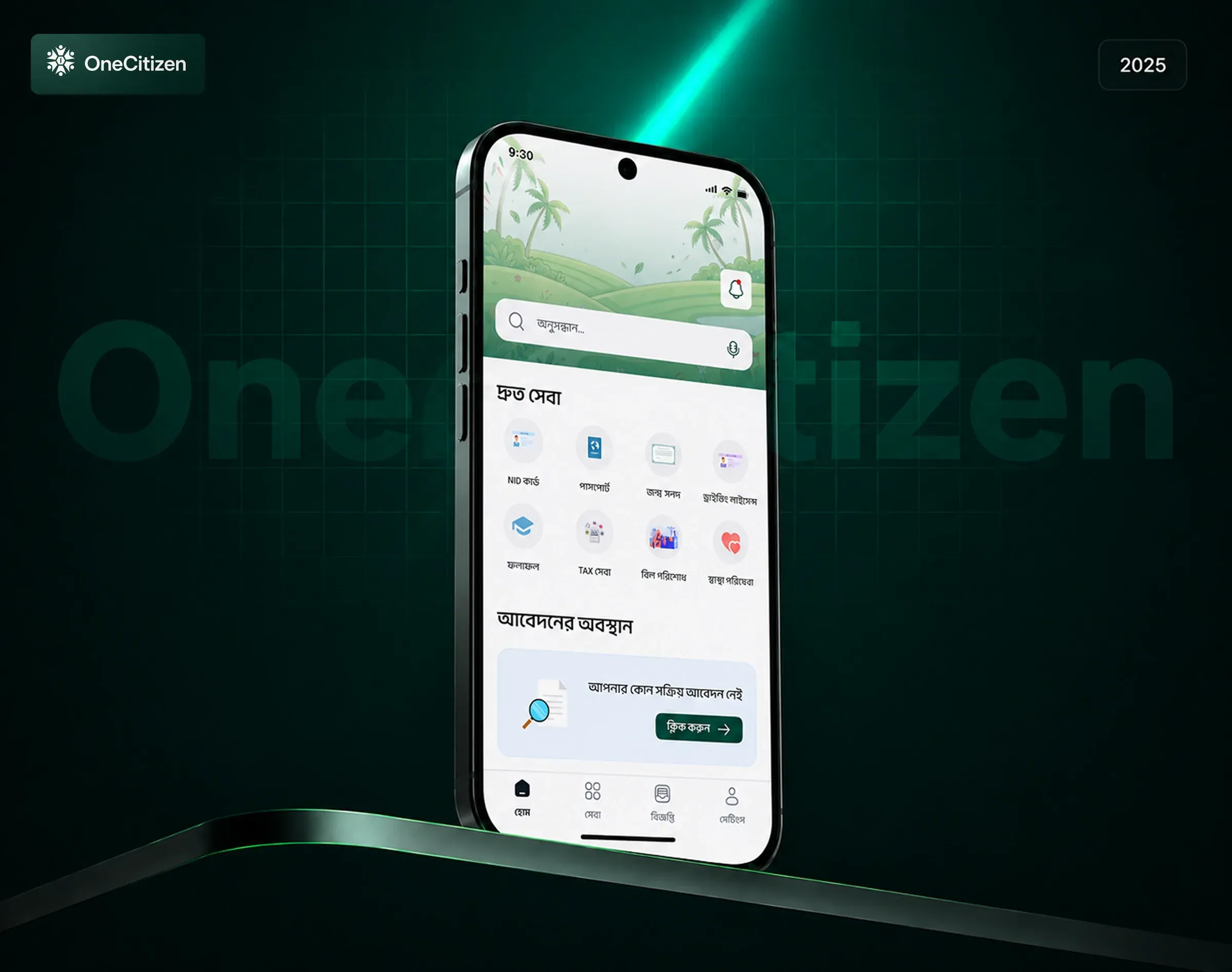
Problem and context
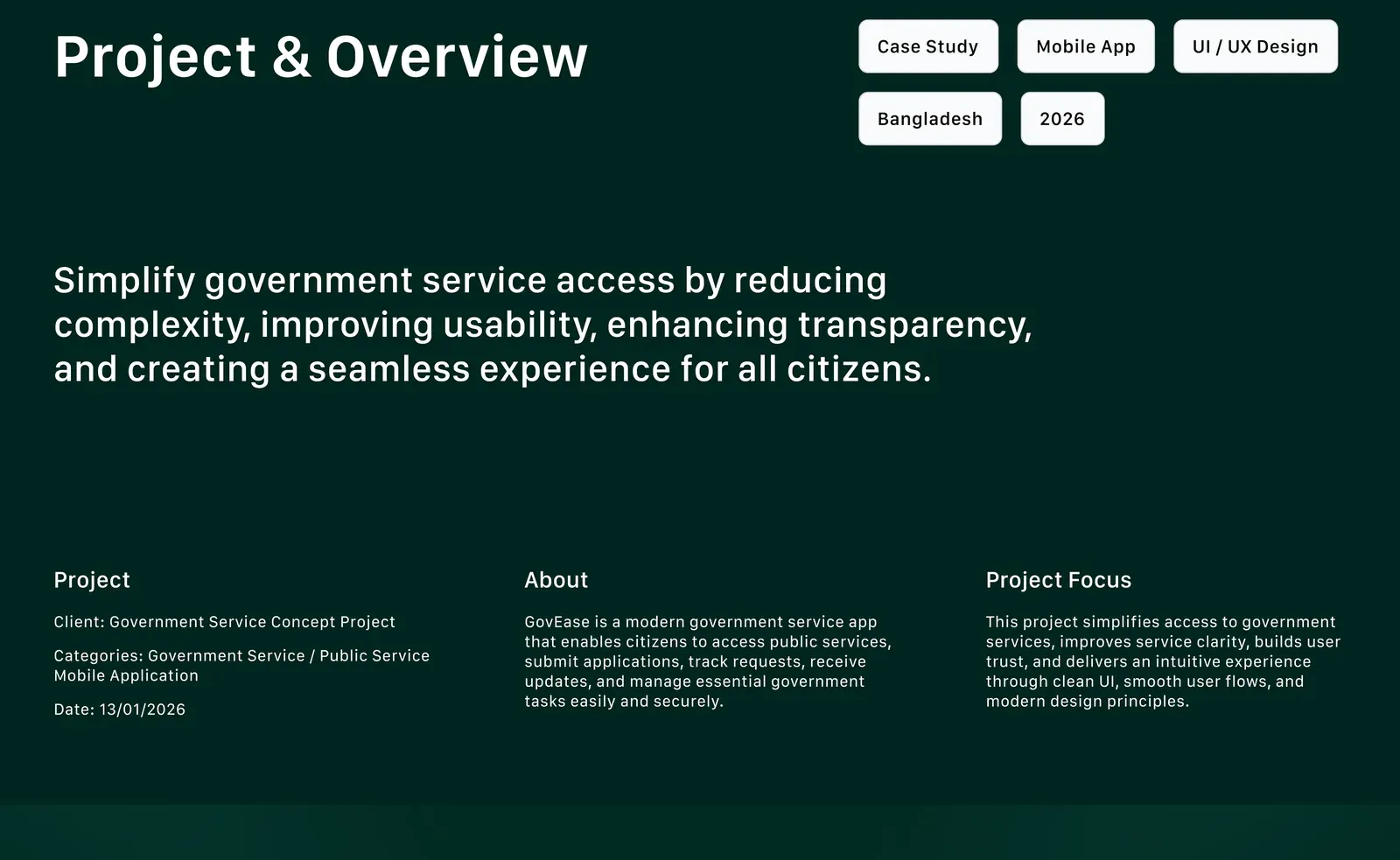
Getting something done with the government in Bangladesh usually means knowing which office, which portal and which documents. The team framed the goal in one line: simplify government service access by reducing complexity, improving usability, enhancing transparency, and creating a seamless experience for all citizens.
The research board named four problems that kept coming up.
- Problem
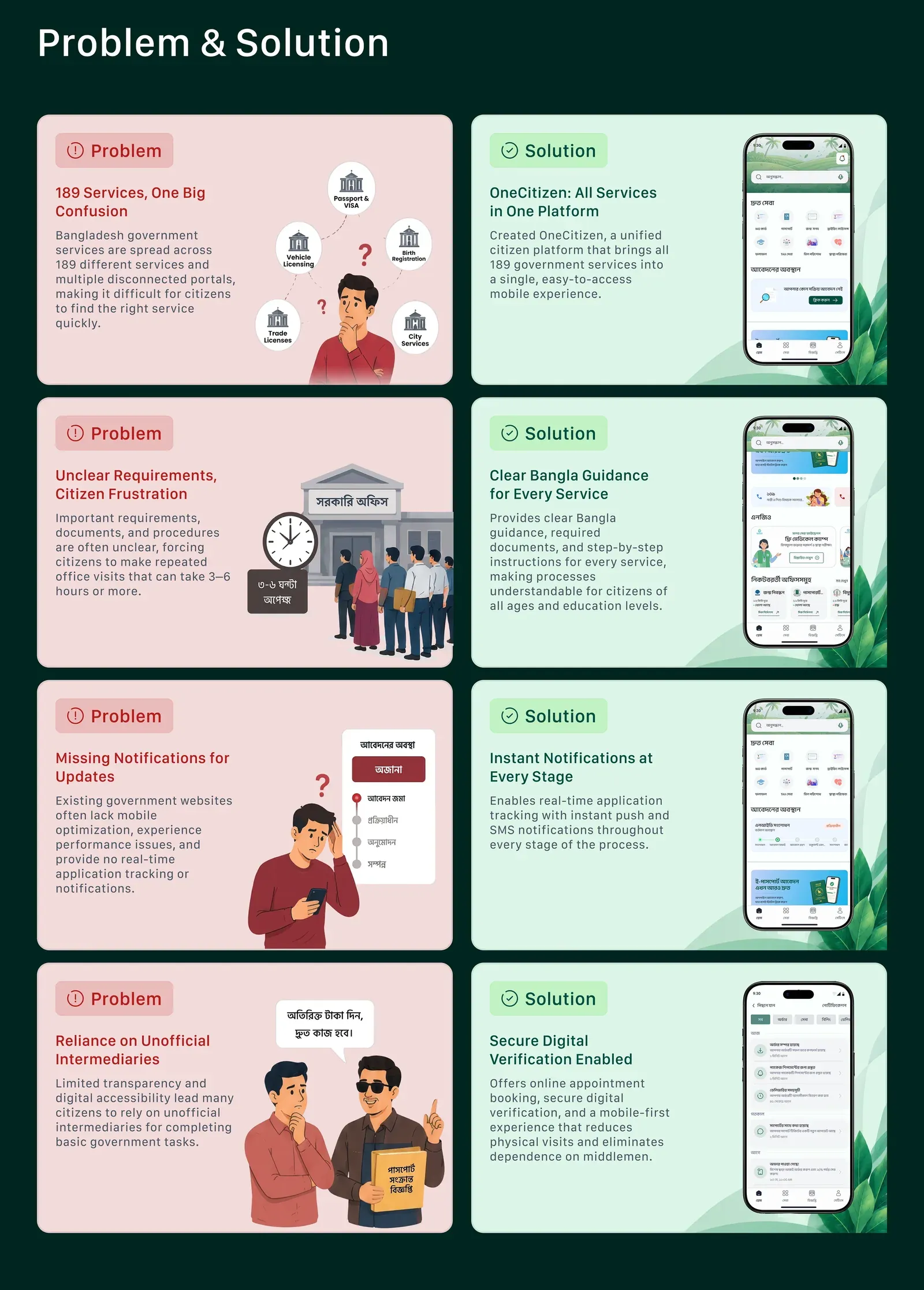
Too many services, too many portals
Services are spread across many separate portals (the team counted 189), so finding the right one is hard.
- Problem
Unclear requirements
Documents and steps are often unclear, which leads to repeated office visits that can take 3–6 hours.
- Problem
No updates
Existing sites are rarely mobile-friendly and offer no real-time tracking or notifications.
- Problem
Middlemen
Limited transparency pushes people toward unofficial intermediaries for basic tasks.
Research
Before any screens, the team talked to people and looked hard at what already existed.
- User interviews
- 5
- People surveyed
- 50
- Platforms analyzed
- 10
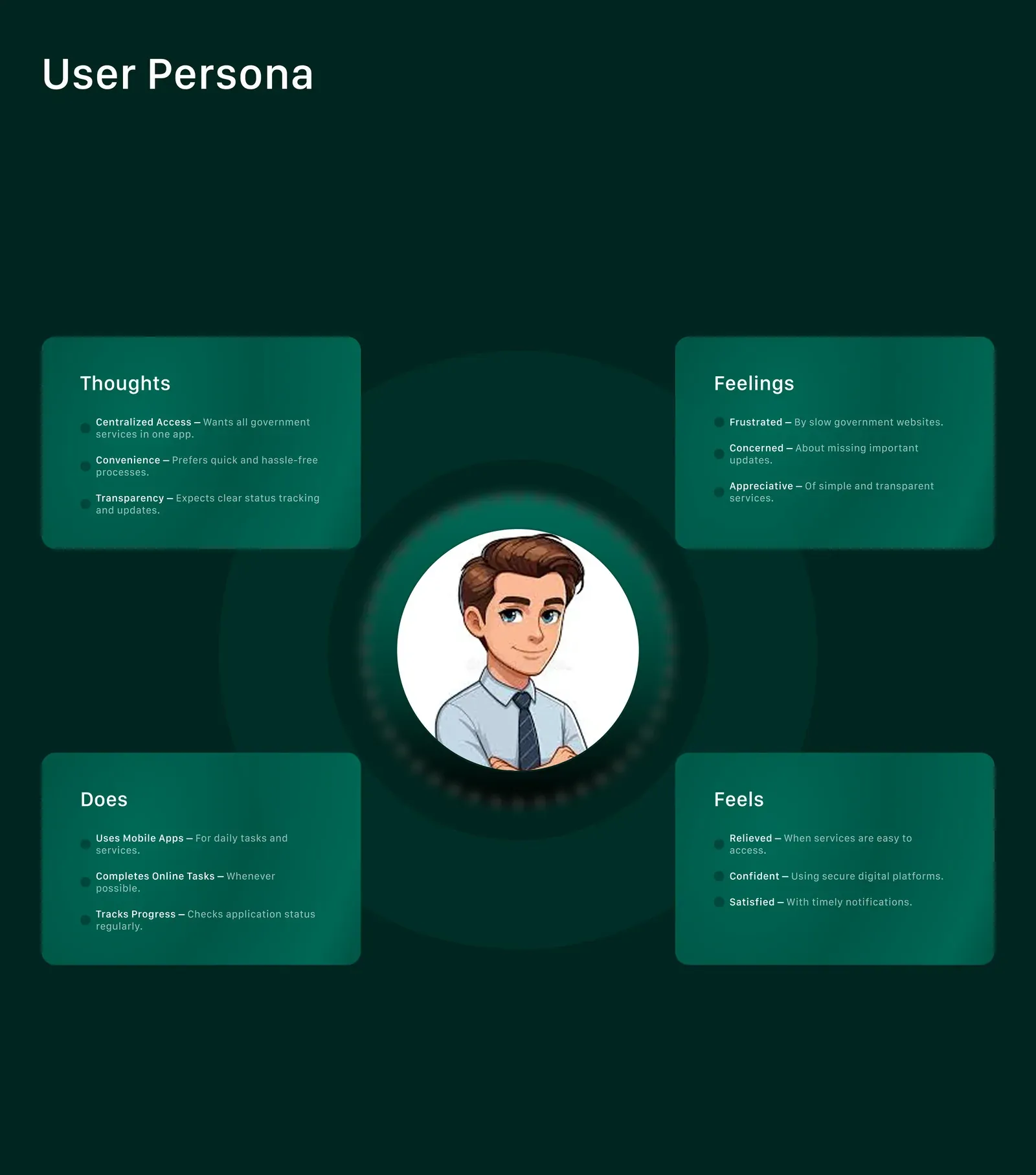
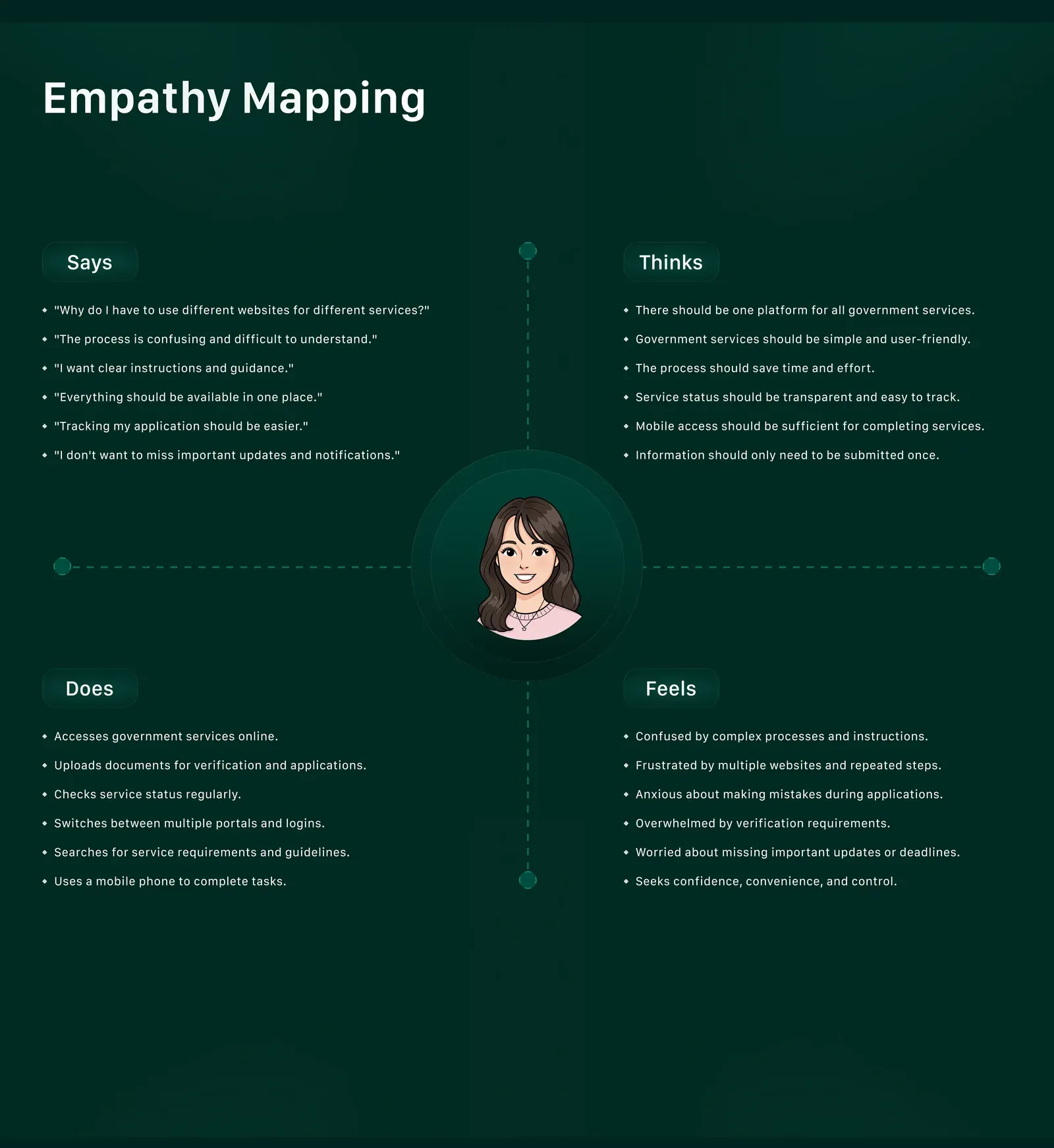
That work became a user persona and an empathy map: what citizens say, think, do and feel when they deal with a government service.
IA and user flows
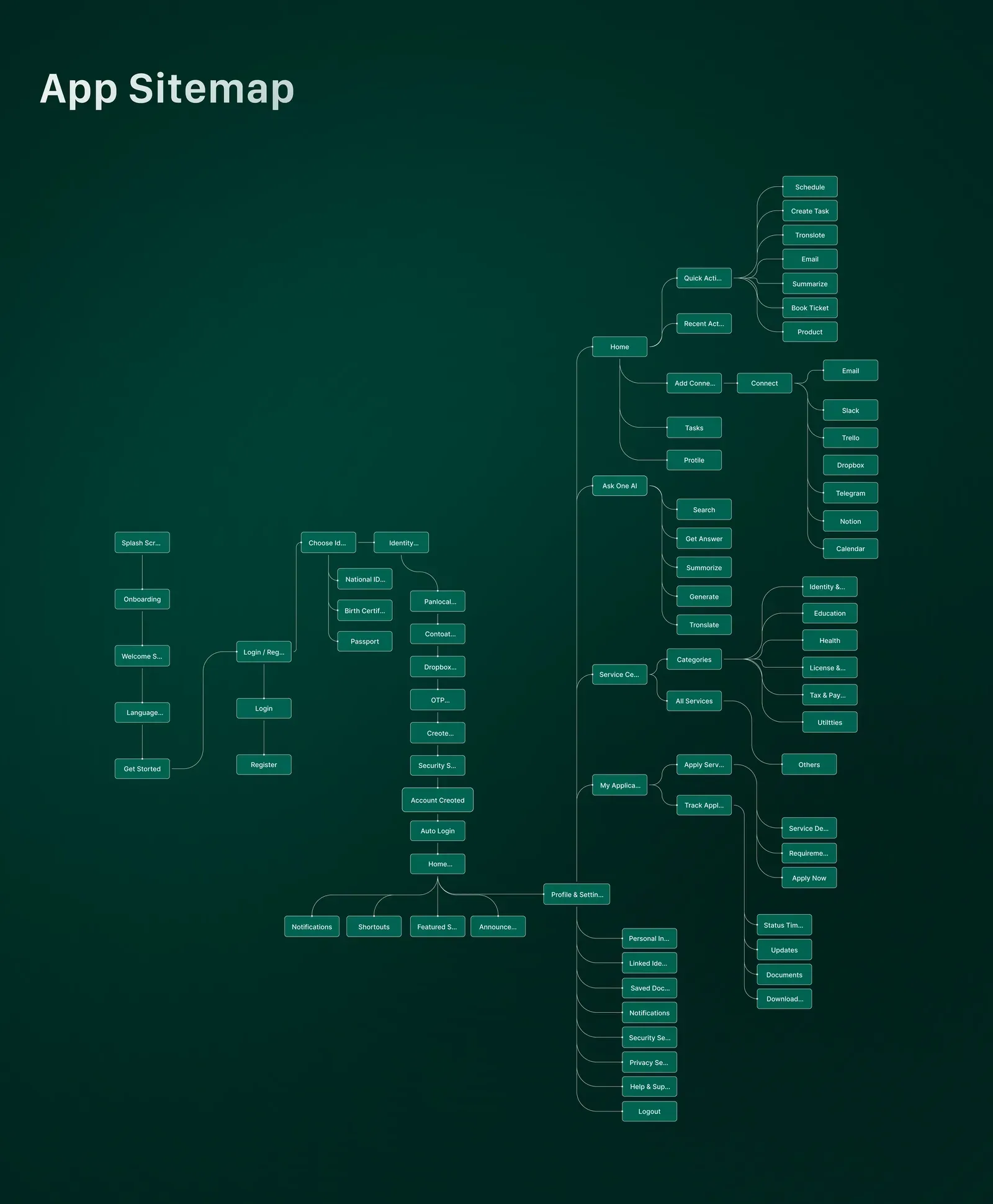
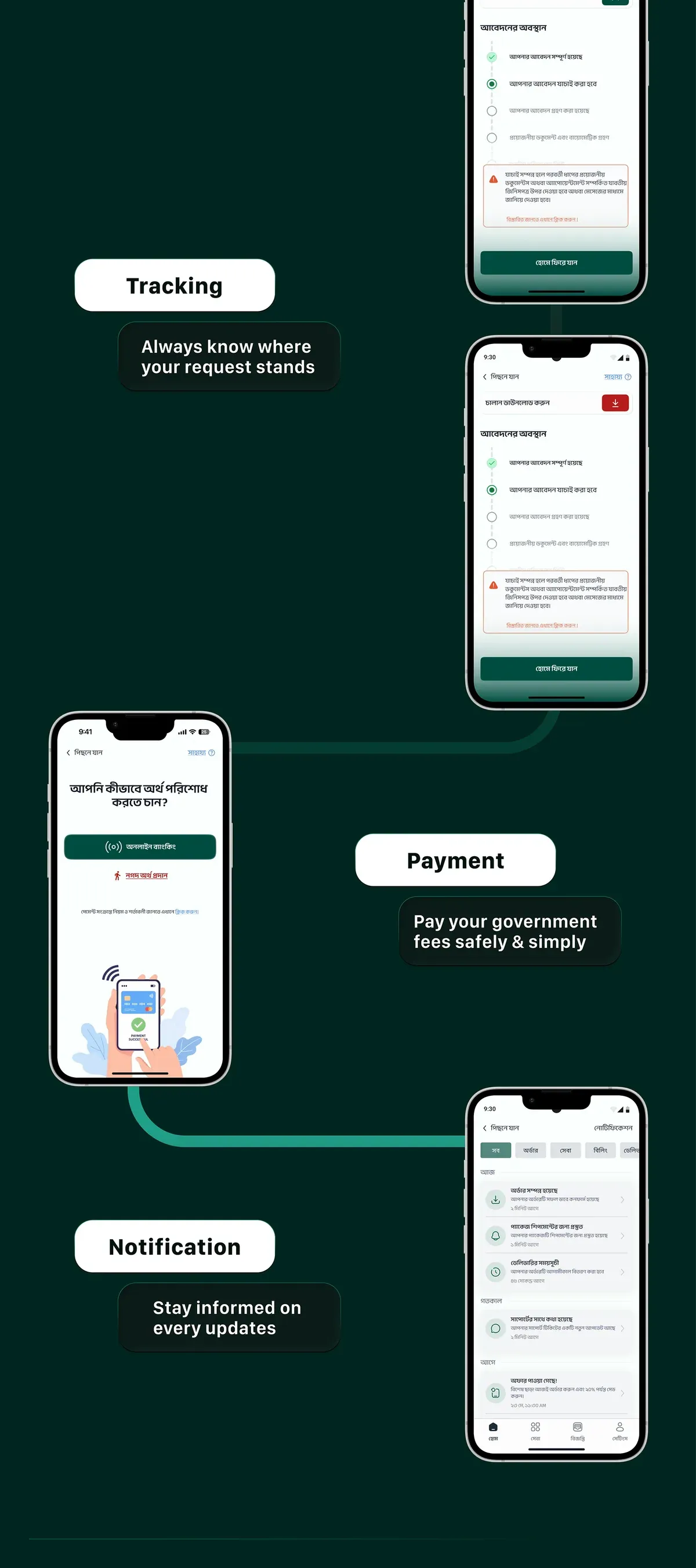
The findings were turned into a sitemap for the whole app, then into flows for each task: onboarding, sign-in, browsing services, applying, paying, tracking and notifications.
-
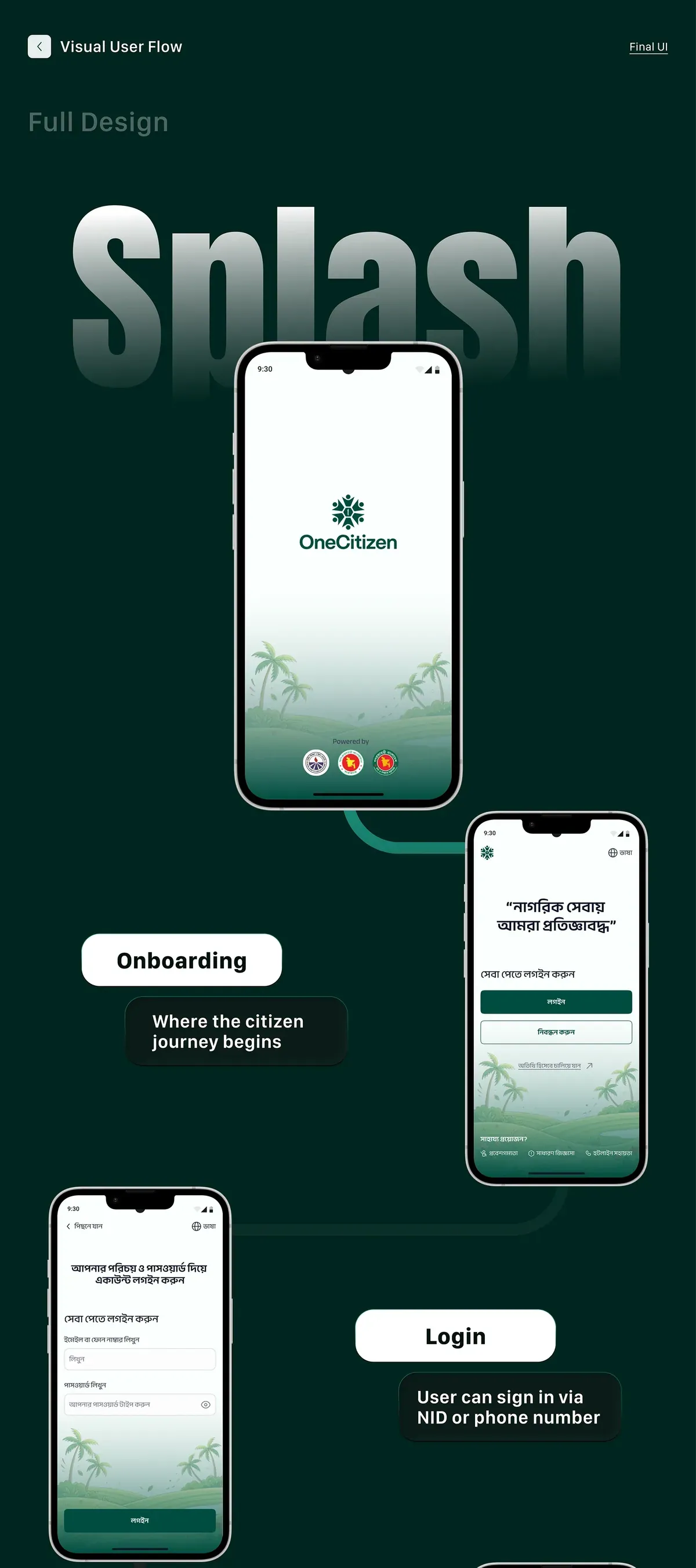
Splash → login → home
-
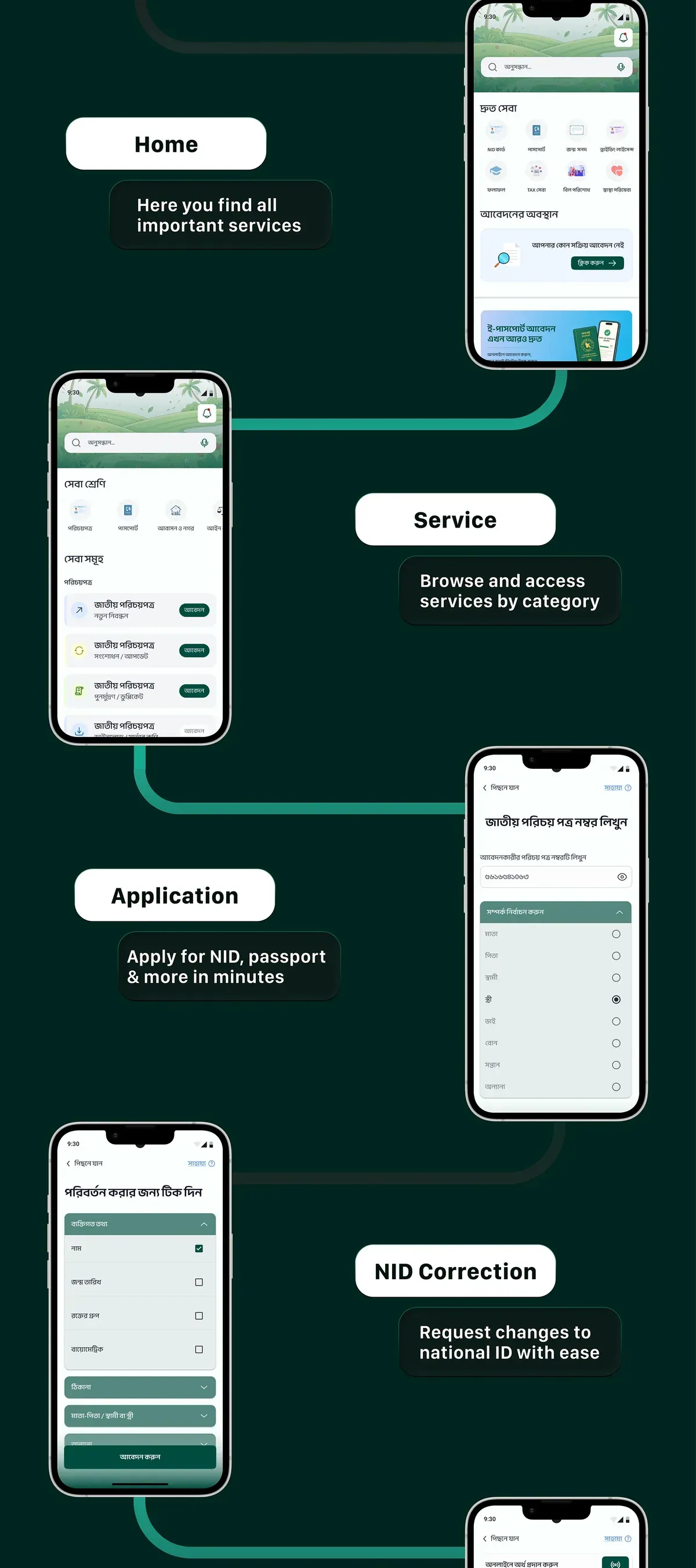
Services → application
-
Tracking → payment
-
Registration
Design system and components
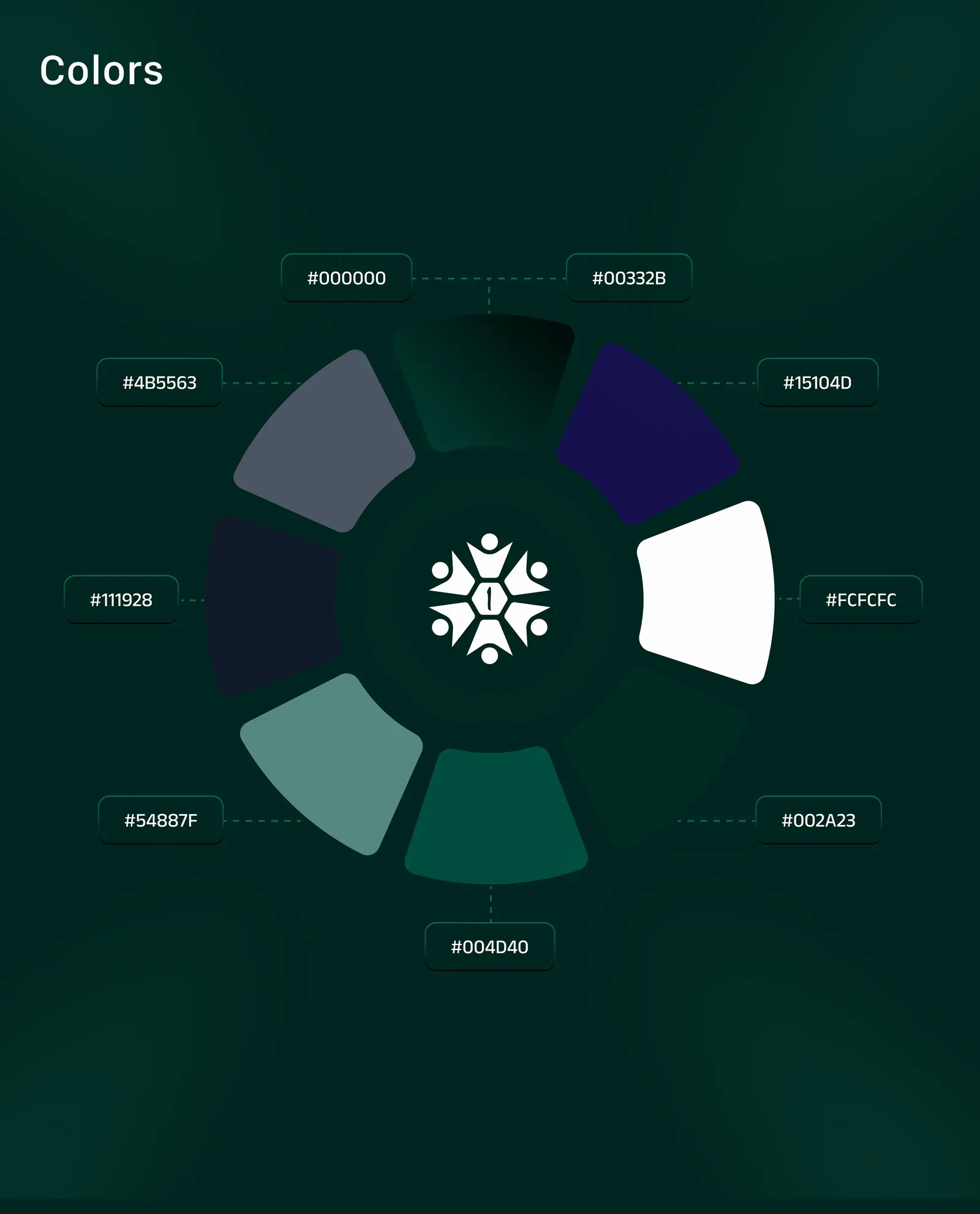
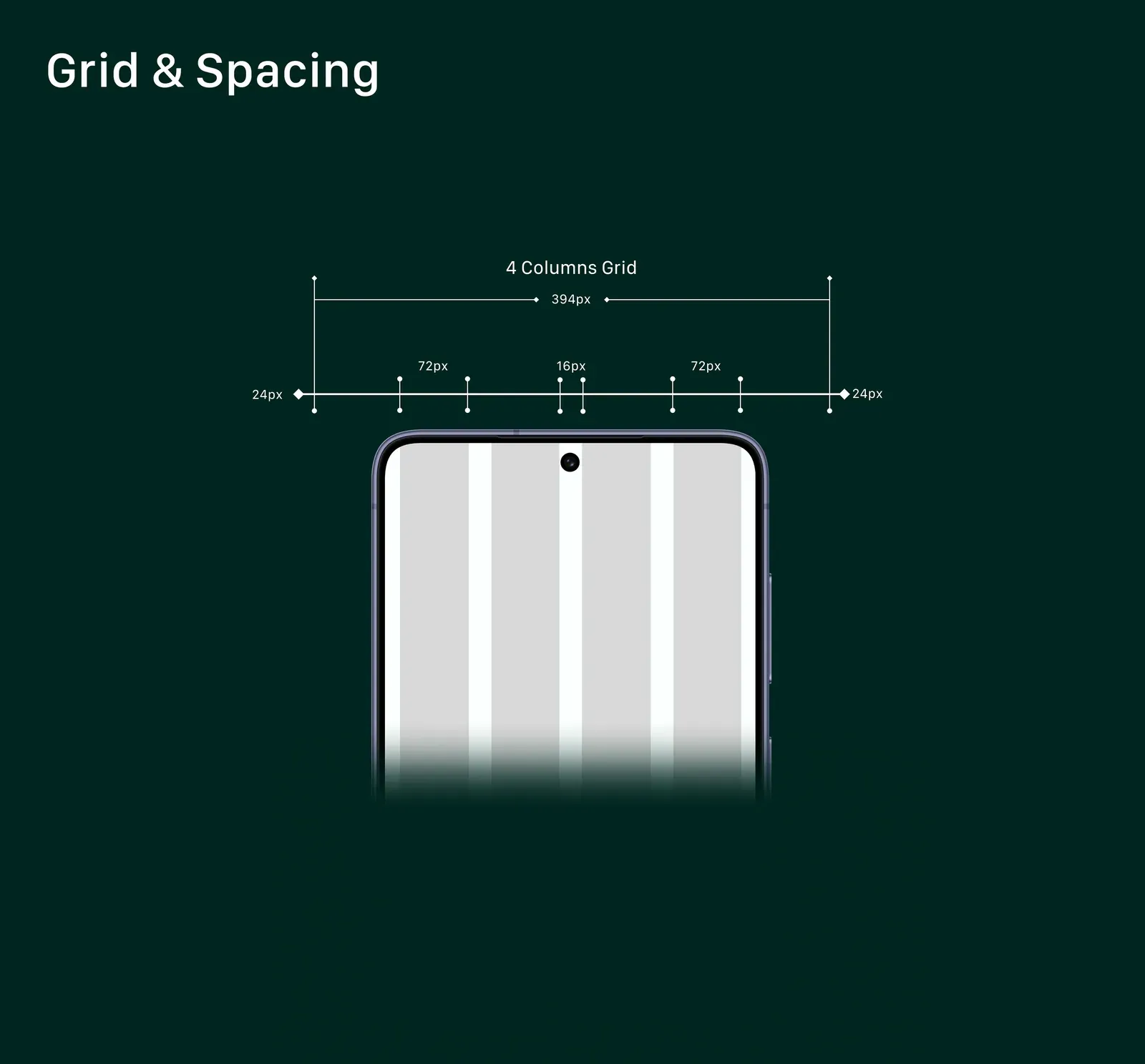
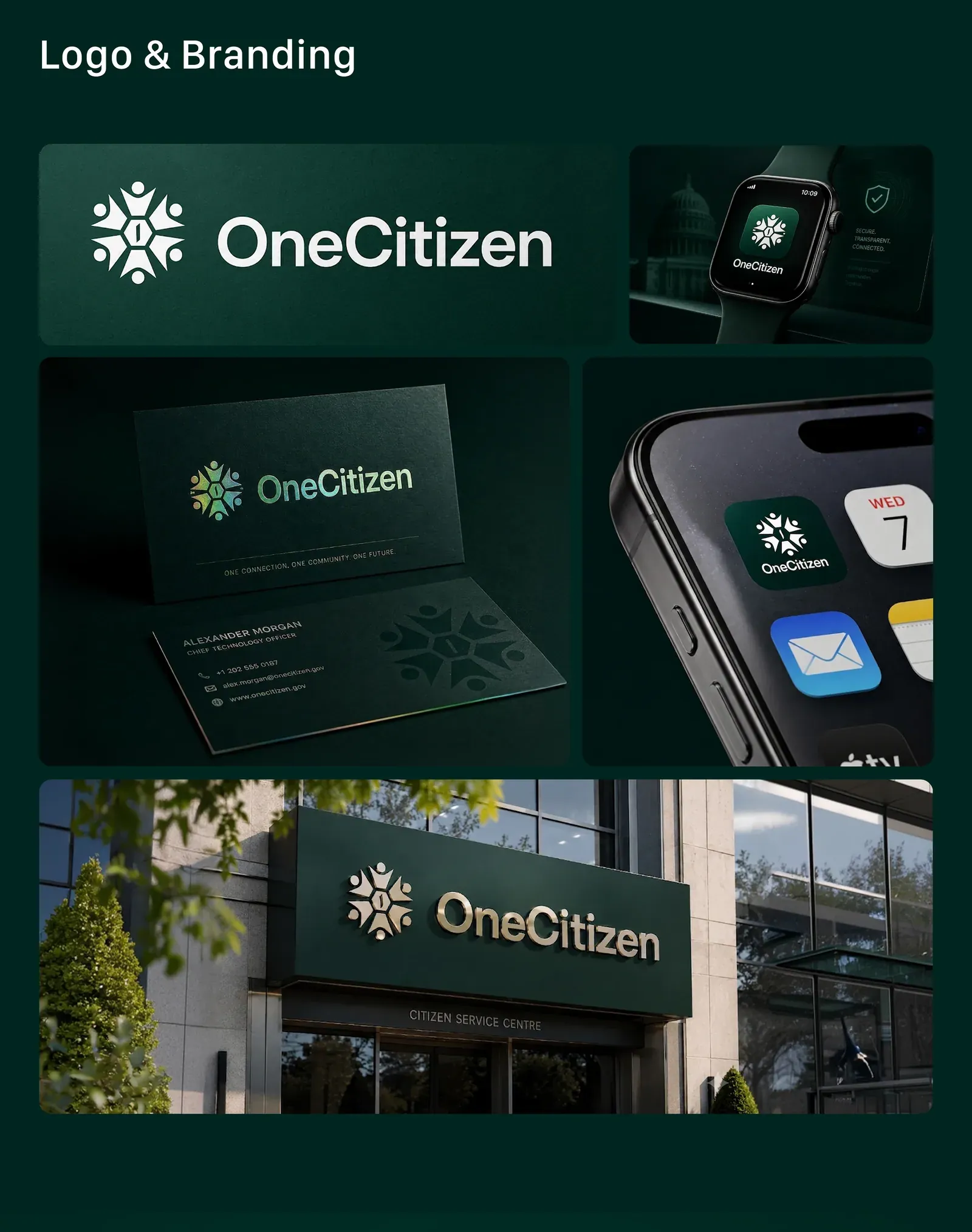
A 10+ component library keeps 30+ screens consistent: one color system, a four-column mobile grid with fixed spacing, and a logo and brand that work from the app icon to a sign on a building.
Each problem got a direct answer in the interface:
- Solution
All services in one place
One app with search and service categories on the home screen.
- Solution
Clear Bangla guidance
Required documents and step-by-step instructions for every service, written for all ages and education levels.
- Solution
Updates at every stage
Application tracking with push and SMS notifications throughout the process.
- Solution
Secure digital verification
Online appointments and verification, so fewer office visits and no middlemen.
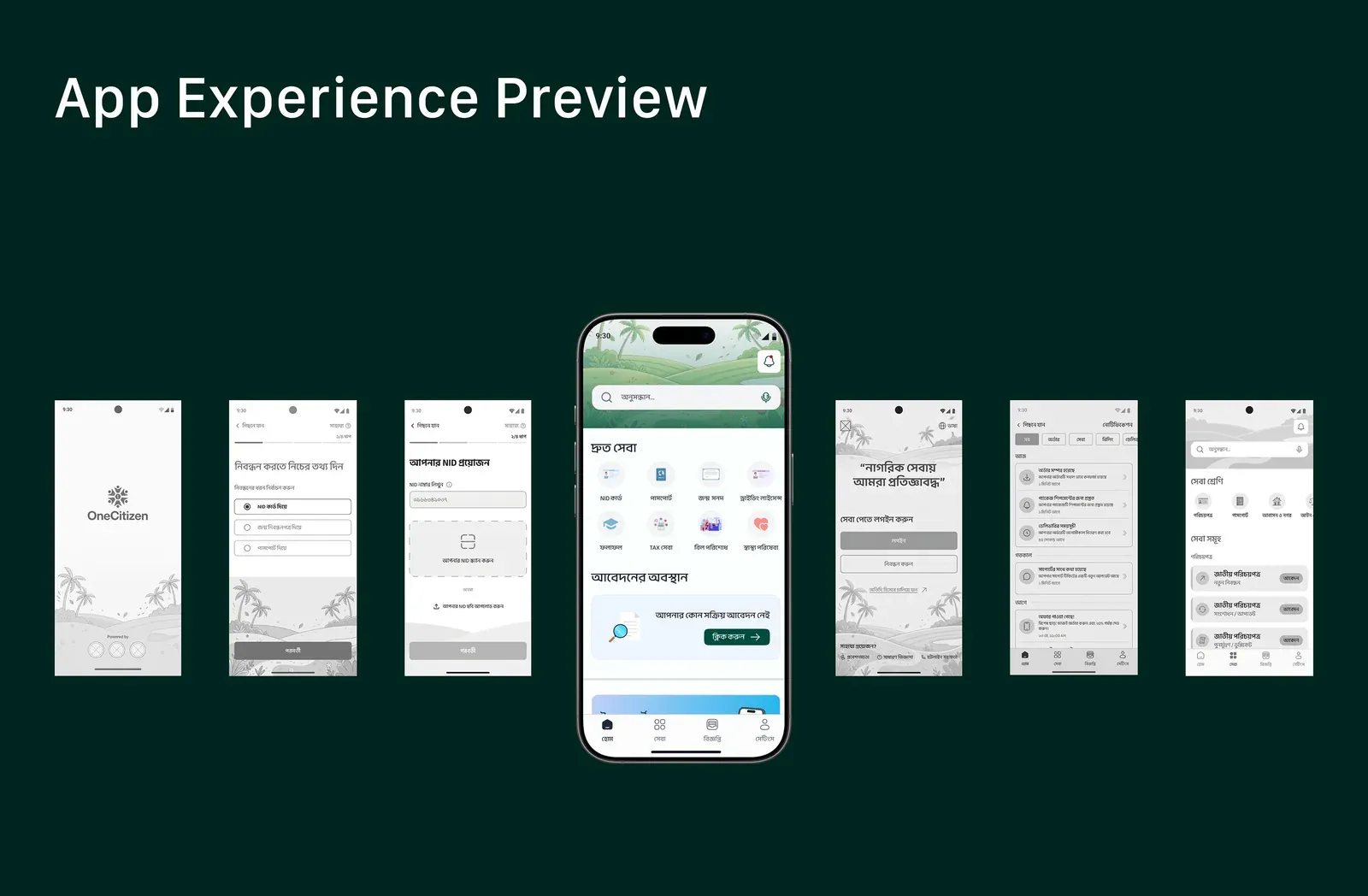
Final screens
-
Splash
-
Sign in
-
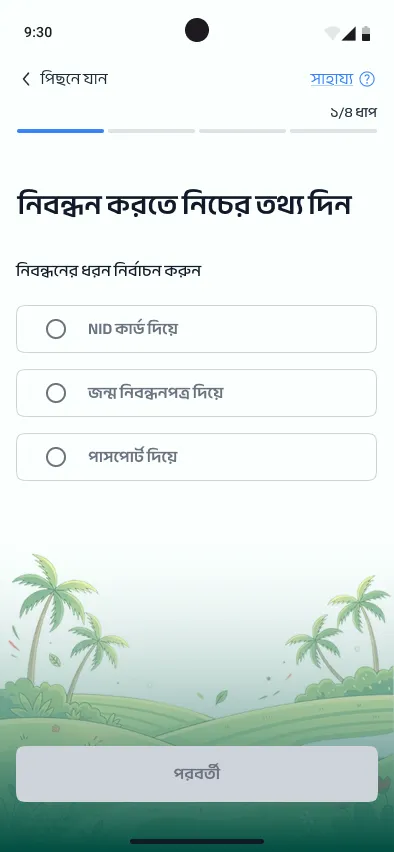
Register: choose an ID
-
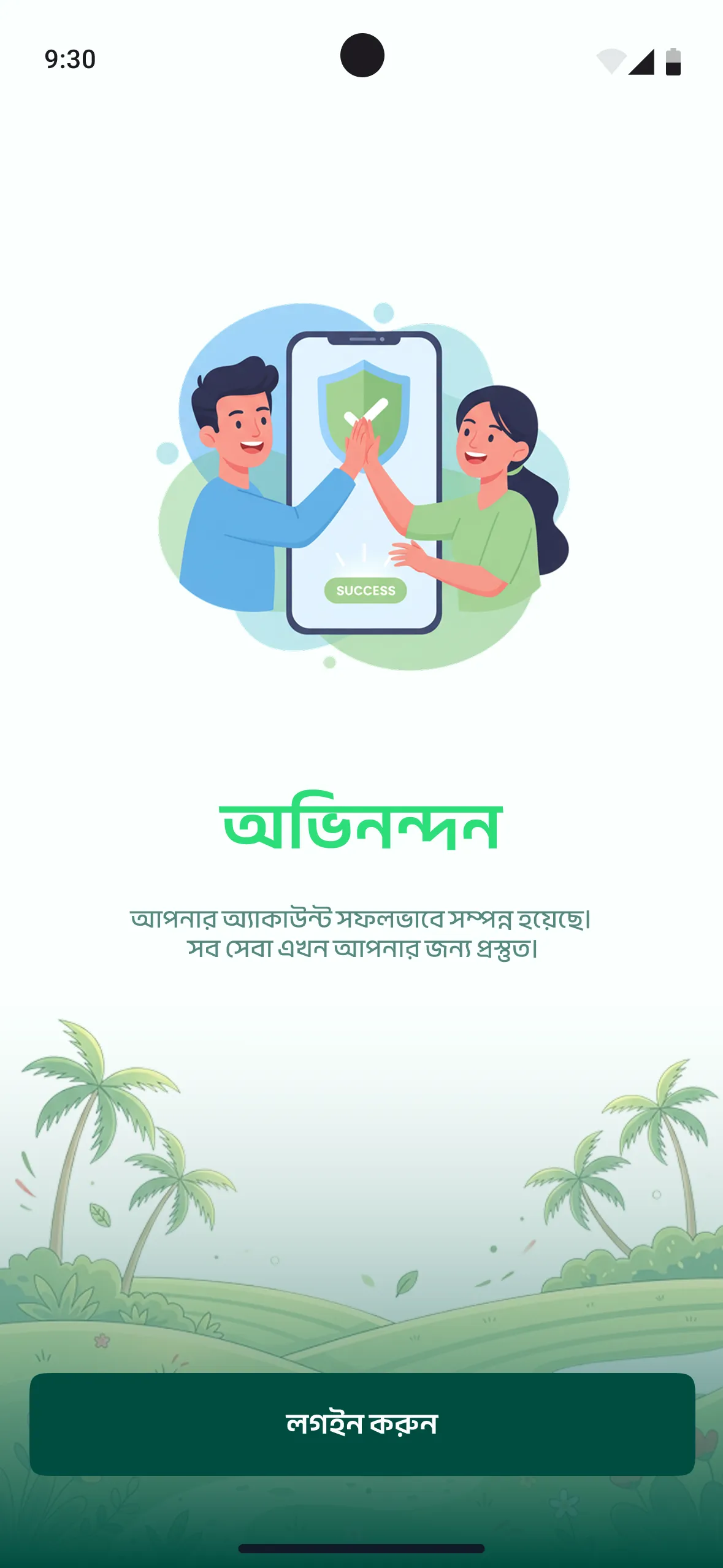
Account created
-
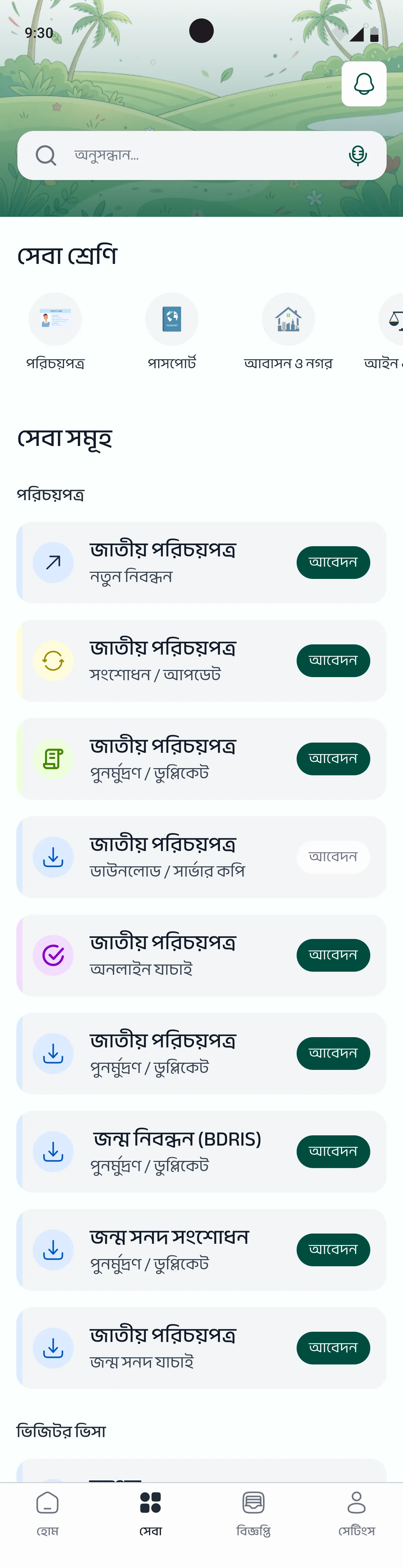
Home and services
-
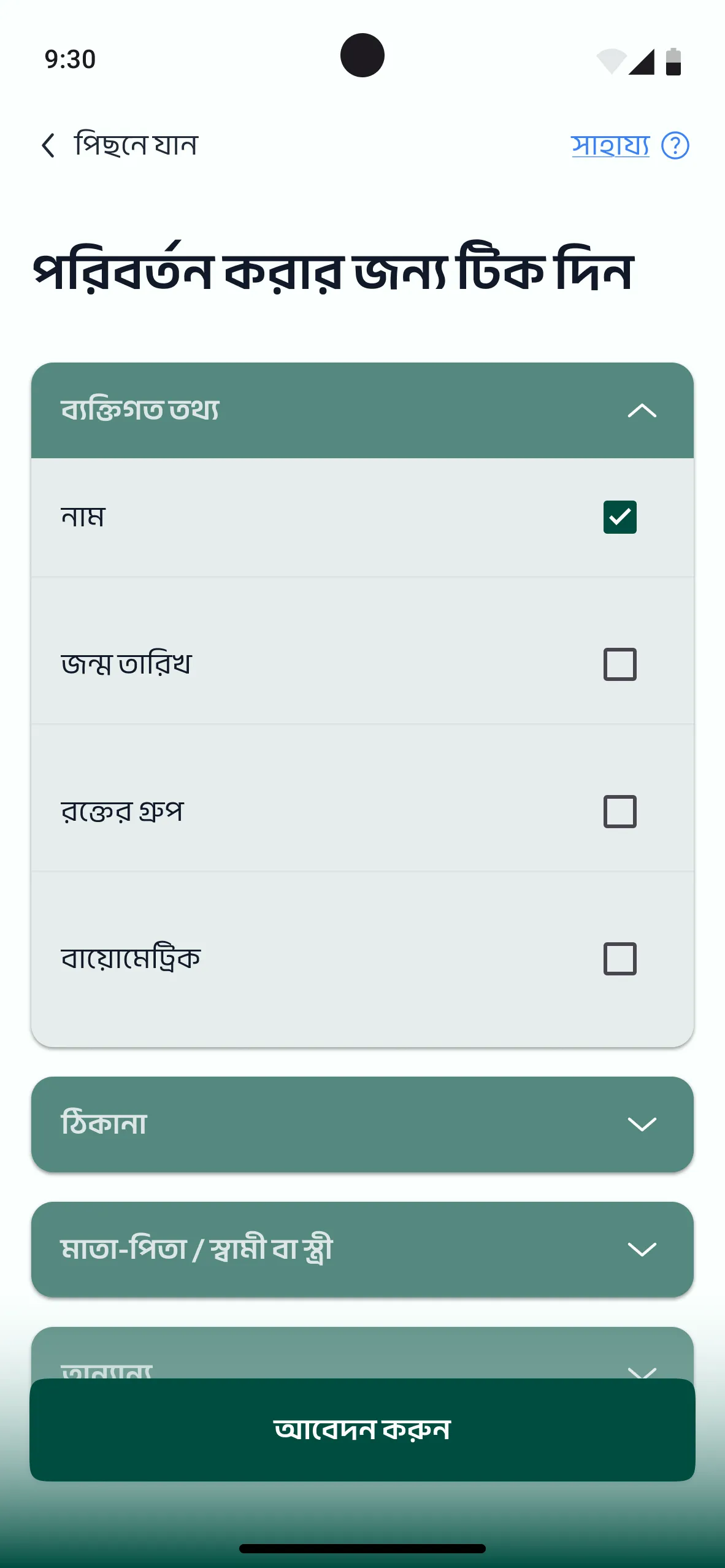
Update an application
Key flows: sign-in and in-app guide
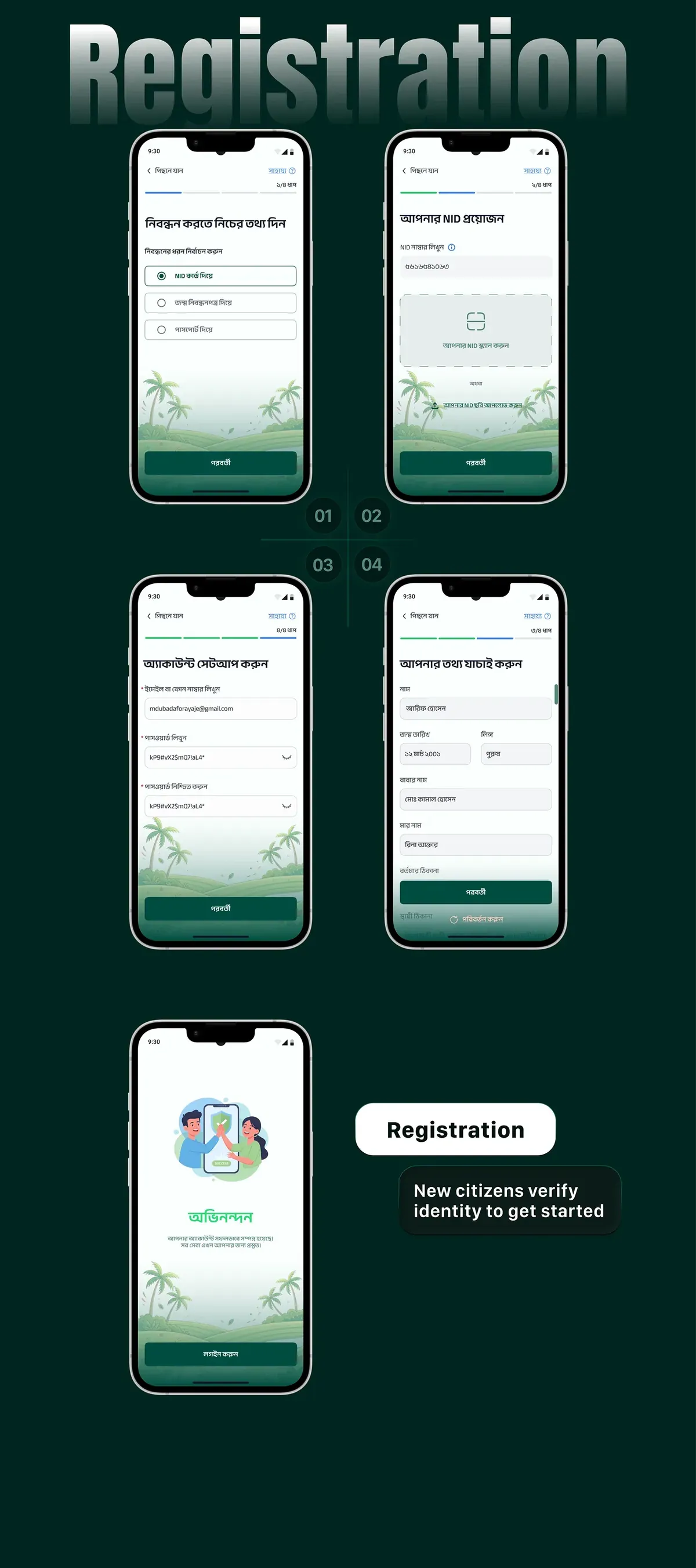
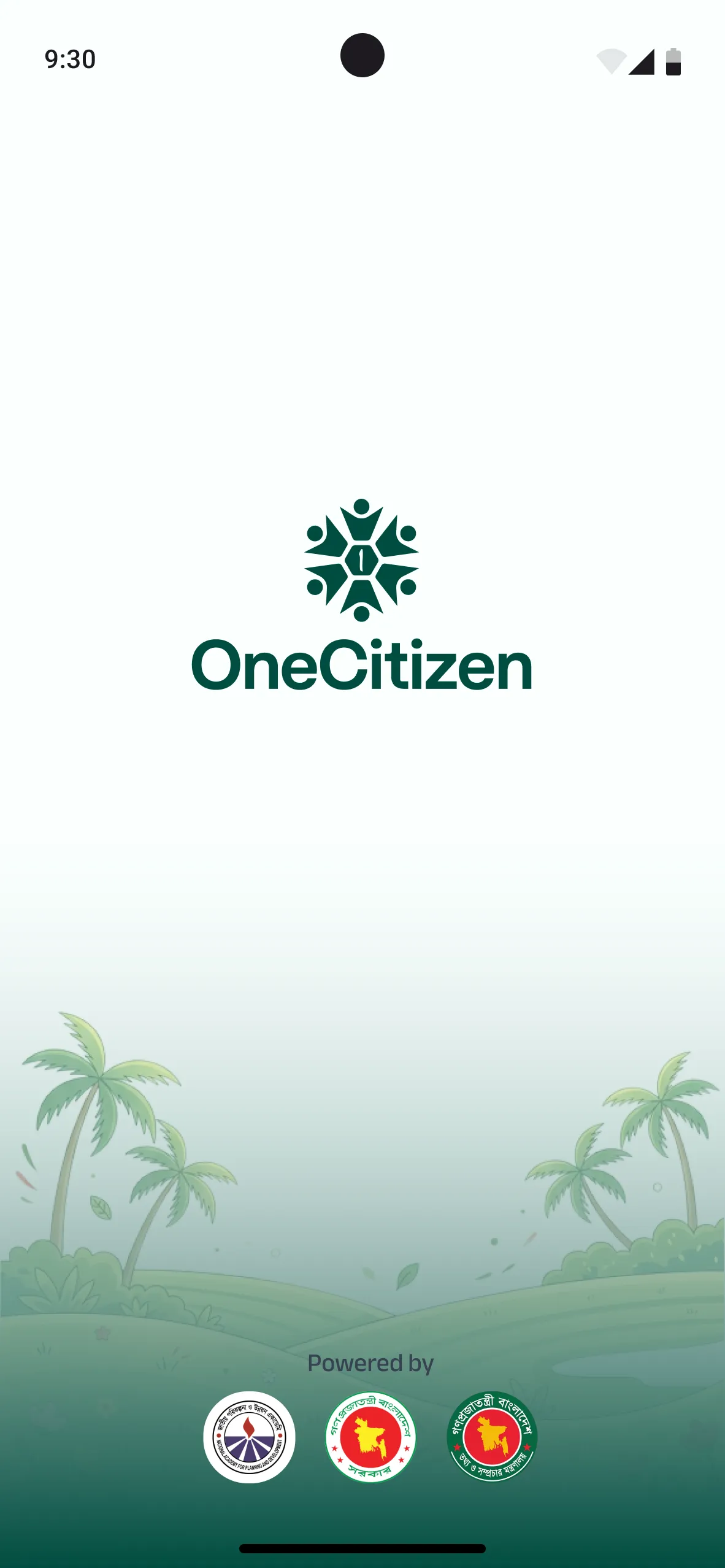
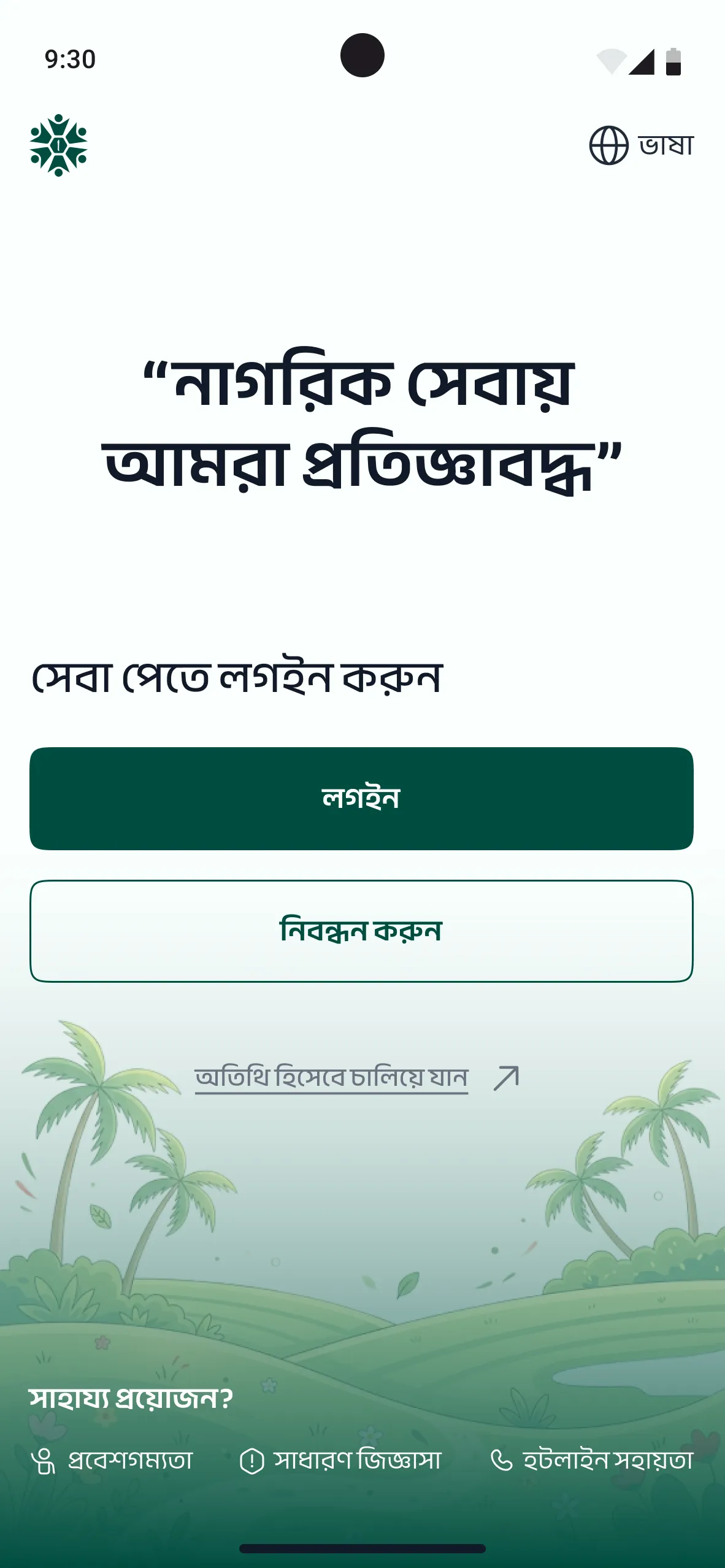
The sign-in flow starts on a calm splash screen and offers two clear choices: log in or register. Registration lets people pick the ID they already have (NID card, birth registration or passport), then confirms success before handing over to the home screen.
From there, an in-app user guide walks new users from login to home, so the first visit doesn’t depend on someone explaining the app.
Reflection
OneCitizen showed how much of a government service is information design: telling people what they need before they leave home, and telling them where their application is without a phone call. The output was 30+ hi-fi screens, a 10+ component library, the sign-in flow and the in-app guide, built as a team of six and published on Behance in July 2026.